

Most of the hand work left in bookkeeping comes down to the same thing. Information shows up inside a document, and someone retypes it into QuickBooks Online or Xero.
A vendor invoice becomes a bill. A card receipt gets attached to a bank transaction, or becomes an expense. A credit memo becomes a vendor credit. A statement gets ticked off against what was already recorded. It is repetitive and predictable, which is exactly why it is a good fit for AI.
The part people get wrong is assuming the model is the hard part. It usually isn't.
Modern models are very good at reading an invoice and pulling out the vendor, the dates and the totals. The hard part is everything around that. Gathering good examples, testing properly, being willing to cut a bloated prompt back down until it actually works, and then turning the data into the right record in the books.
This guide is the whole path for bookkeeping documents in one place. It starts with which documents are worth automating and what the workflow looks like end to end, then walks through the five steps I follow to build the extraction at its core, how the extracted data becomes a bill, an expense or a credit, what gets matched, checked and held, and how to decide whether to build it at all. The five steps hold for any document workflow, but every example here is a document a bookkeeper actually handles.
If you came here asking how to automate document processing in general, automated document processing is this same workflow under another name: software reads a document, turns it into checked data, and creates the record it stands for. Whether you build it or buy it, the answer starts with one document flow, and the section on how to automate document processing sets out the rollout in seven steps.
Table of contents
- Which documents first: bills, receipts and credit memos, and the documents that only look like them
- The workflow end to end: the six stages from inbox to a record in QuickBooks Online or Xero
- Email intake edge cases: links, bundles, reminders, statements and forwarded chains
- Gather examples: gather your example documents and split them into a build set and a test set
- First prompt draft: let an AI write the first version of your prompt, with the output as JSON
- Cut it down: read it carefully and cut it down
- Test it: run your test documents through it and check the results
- Refine and decide where it runs: refine until it holds, then decide where it runs
- Posting the record: turning extracted fields into a bill, an expense or a credit, coded to the chart of accounts
- Matching and duplicates: receipts against existing transactions, bills against bills already processed
- What gets held: the concrete reasons a document waits for a person
- One invoice, start to finish: a sample bill walked into QuickBooks Online and into Xero
- After extraction: the production work left once extraction is accurate
- Putting it together: the whole workflow in order, in one list
- The folder layout: where examples, prompts and code live on disk
- Build or buy: when building your own pays off, and when it does not
- How to automate document processing: seven rollout steps, and the two numbers that show it is working
- How many examples you need: why variety matters more than volume
- Images or extracted text: when to send page images and when to pull the text out
Read it start to finish, or jump to wherever you are stuck.
Which bookkeeping documents should you automate first?
Start with vendor invoices, then receipts, then credit memos. Invoices arrive in the highest volume, have a predictable set of fields (vendor, invoice number, dates, totals, tax, lines) and each one becomes a single record: a bill. Receipts come next, because most should be matched to a transaction already in the books rather than create anything new. Leave statements, contracts and anything that needs judgment until the first three hold up.
Volume and predictability decide the order.

A useful way to sort the documents a bookkeeper sees is by what each one should become in the books.
- Vendor invoices become bills. They are the clearest case: money owed, a due date, a vendor you probably already have as a contact. The fields are close to the same on every invoice even when the layouts are wildly different, which is the situation AI extraction handles well.
- Receipts record money that has already left. The right outcome is usually to attach the receipt to the card or bank transaction it belongs to, and only create an expense (Spend Money in Xero) when nothing matches. Our guide to bills vs expenses covers that decision in both systems.
- Credit memos become a vendor credit in QuickBooks Online or a credit note in Xero. They are lower volume, and the main risk is recording one as a bill, which turns money you are owed into money you owe.
Then there are documents that look like invoices but should not become one. A statement lists invoices that are already in the books. A remittance advice tells you a customer paid you. A quote or a purchase order describes a bill that does not exist yet. A payment reminder repeats an invoice you already have. A good first workflow does not need to process these, but it does need to recognize them and leave them alone, because each one posted as a bill is a duplicate or a fake payable. In practice, telling these apart from real invoices is a large part of the work, and it is the reason the first stage of the workflow below is sorting, not reading.
At the far end are documents that need judgment: contracts, lease agreements, letters from a tax authority, a client's note explaining a transaction. Extraction can still help with these, but the output is a summary for a person, not a record in the books. Automate them last, if at all.
If you run a firm, the order is the same, but multiply it by every client. The document mix varies a lot between clients, so it is worth looking at the actual inboxes before deciding what to build first. One client may send three hundred receipts a month and five invoices, and another the reverse.
For the vocabulary behind all this, our guide to what invoice automation is explains the stages of the accounts payable pipeline, and invoice OCR covers how the reading step works.
What does a bookkeeping document workflow look like end to end?
A bookkeeping document workflow has six stages. A document arrives, usually by email. It is sorted into a type (invoice, receipt, credit memo, or something to leave alone). The fields are read out as structured data. The data is checked, against itself and against the books. A record is created in QuickBooks Online or Xero with the document attached. Anything that failed a check waits for a person.
The extraction is one stage of six.

Each stage has its own job and its own way to fail.
Arrive. Most bookkeeping documents come by email, to several people, in several inboxes. Some come as attachments, some as links to a vendor portal, some as the body of the email itself. A forwarding address or an upload page can collect the rest. The hard part is not receiving a file, it is noticing every one of them. Our guide to email invoice automation covers why the inbox is where accounts payable breaks.
Sort. Before reading anything, decide what the document is. This is where the statements, reminders and quotes from the previous section get set aside. It is a classification problem, and it is worth testing on its own, because every later stage assumes it was right.
Read. Pull out the fields you need as JSON. This is the stage the five steps below are about, and it is the one people usually picture when they think of the whole project.
Check. Do the line items add up to the subtotal, and does subtotal plus tax equal the total? Is this invoice number from this vendor already in the books? Does the vendor exist as a contact? Is there a due date? Each check that fails becomes a reason to hold the document instead of posting it. Our guide to duplicate invoices and payments goes deep on the duplicate check alone.
Post. Turn the checked data into the right record: a bill, an expense or a credit, with the vendor matched, each line coded to an account, and the original document attached. This is covered in its own section below, because it is where a workflow that reads documents well can still produce wrong books.
Review. Something will always need a person. The goal is not zero holds, it is that every hold has a clear reason and every posted record is one you would have posted yourself. If you need sign-off on bills before they are paid, invoice approval software covers that layer.
Build the stages in that order and test each one before moving on. A workflow that reads perfectly but sorts badly will post a statement as a bill, and no amount of prompt work on the reading stage will fix it.
Product pages often describe the same path as five stages: intake, classification, extraction, validation and delivery, with review folded into validation. The useful question for any tool is which of the five it performs and which it leaves to you. A tool that extracts well and then hands you a spreadsheet to import has stopped one stage short of the books.
What goes wrong at email intake?
Email is messier than any intake form. Invoices arrive as attachments, as links to a vendor portal, or typed into the body of the message. One PDF can hold several invoices. Reminders resend the same bill, statements and quotes look like invoices, and a colleague's forward hides the real sender. A workflow needs an answer for each of these before the sort stage ever runs.
Test every case below on your own mail.

Links instead of attachments. Utilities and software vendors often email a portal link rather than the bill. If your workflow only reads attachments, those bills never arrive, and nobody notices until a late fee does.
Invoices in the email body. Some small vendors type the invoice straight into the message, so the body has to be read as a possible document too.
Several invoices in one PDF. A supplier sends a month of delivery tickets as one file, or a scanner bundles a stack of receipts. Each document inside needs to become its own record, checked for duplicates on its own, or the bundle posts as one oversized bill.
Reminders and resends. The same invoice arrives on day one and again as a "friendly reminder" on day thirty. Every copy after the first is a duplicate.
Statements, quotes and deposit requests. A statement lists what was already billed, a quote has no due date, and a deposit request refers to money partly settled elsewhere. All three should wait for a person.
Forwarded chains and scattered inboxes. A colleague forwards a bill, so the sender is your own team rather than the vendor. Half the bills land in the owner's inbox and half in the office manager's. Intake has to cover every inbox the documents actually reach.
DocStreamAI watches connected Gmail and Outlook inboxes as documents arrive and marks each email with a Gmail label or Outlook category, so the team can see what was handled. A PDF holding several invoices is split into separate documents. Each organization also gets an intake address, and an accountant can connect their own inbox inside a client's workspace.
Gather your examples and split them into a build set and a test set
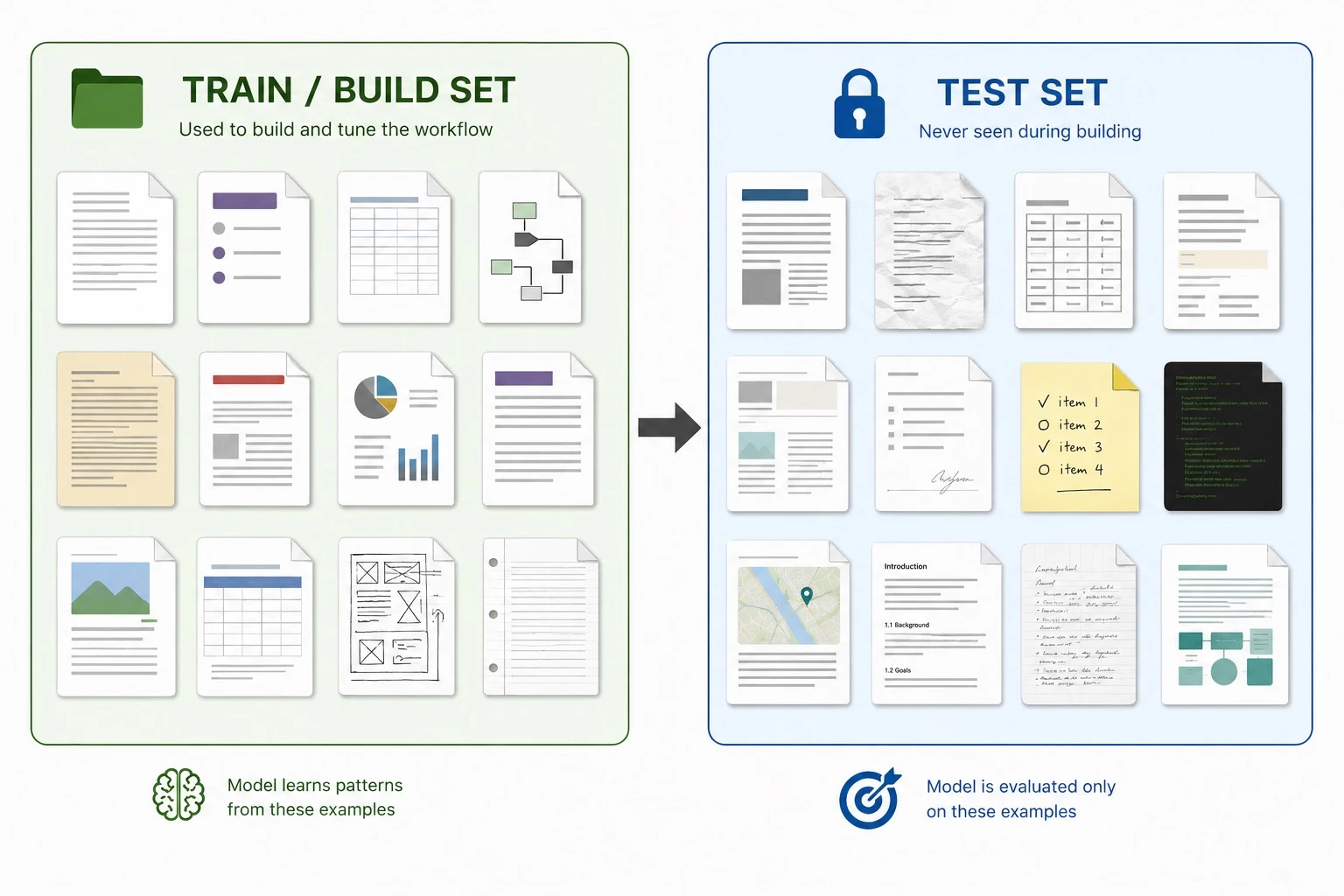
Before you write anything, collect documents. As many genuinely different examples as you can get, and for each one, the exact output you would want from it.
Different is the word that matters. You do not want twenty invoices from the same vendor on the same template.
You want lots of vendors in lots of layouts: the utility bill, the one-page invoice from a sole trader, the six-page invoice from a supplier with forty line items, the invoice with tax broken out by rate and the one with tax included in every line. You want thermal receipts photographed on a car seat next to clean PDF receipts from an online store. You want a credit memo or two, a statement, a payment reminder, and a PDF with three invoices stapled into one file.
Some with every field filled in and some half blank. Dates written 03/04/2026 by a vendor who means the 3rd of April. Clean digital PDFs and ugly scanned photos. The variety is the point, because it forces your workflow to deal with the real world instead of one tidy corner of it.
For each example, write down the record you would have entered by hand: the vendor, the invoice number, the dates, the totals, the account each line belongs to. That is your answer key, and it is worth taking the time to get right, because everything you test later is compared against it.
Organize them into folders, and then do the thing most people skip. Split your examples into a set you build with and a set you only test against.
This comes straight from how machine learning models are evaluated, and it matters for the same reason. If you tune your prompt against the same documents you use to judge it, you have no idea whether it actually learned the task or just memorized those specific files.
Holding back a separate set of documents the prompt never saw while you were building is the only honest way to answer the question you actually care about, which is whether this will work on the next invoice that arrives.
It also shows you bias. If your workflow nails every invoice that looks like the handful you built on but falls apart on a layout it was not tuned on, that is a workflow that learned your sample, not the task. The held back set is what catches that before it reaches your books. If you work for several clients, make sure both sets include documents from several of them, so you are not building a workflow that only knows one client's vendors.
A simple rule is to keep most of your examples for building and set aside a meaningful chunk, maybe a quarter or a third, that you do not touch until you are testing. The more varied both sets are, the more you can trust the result.
Let an AI write the first version of your prompt
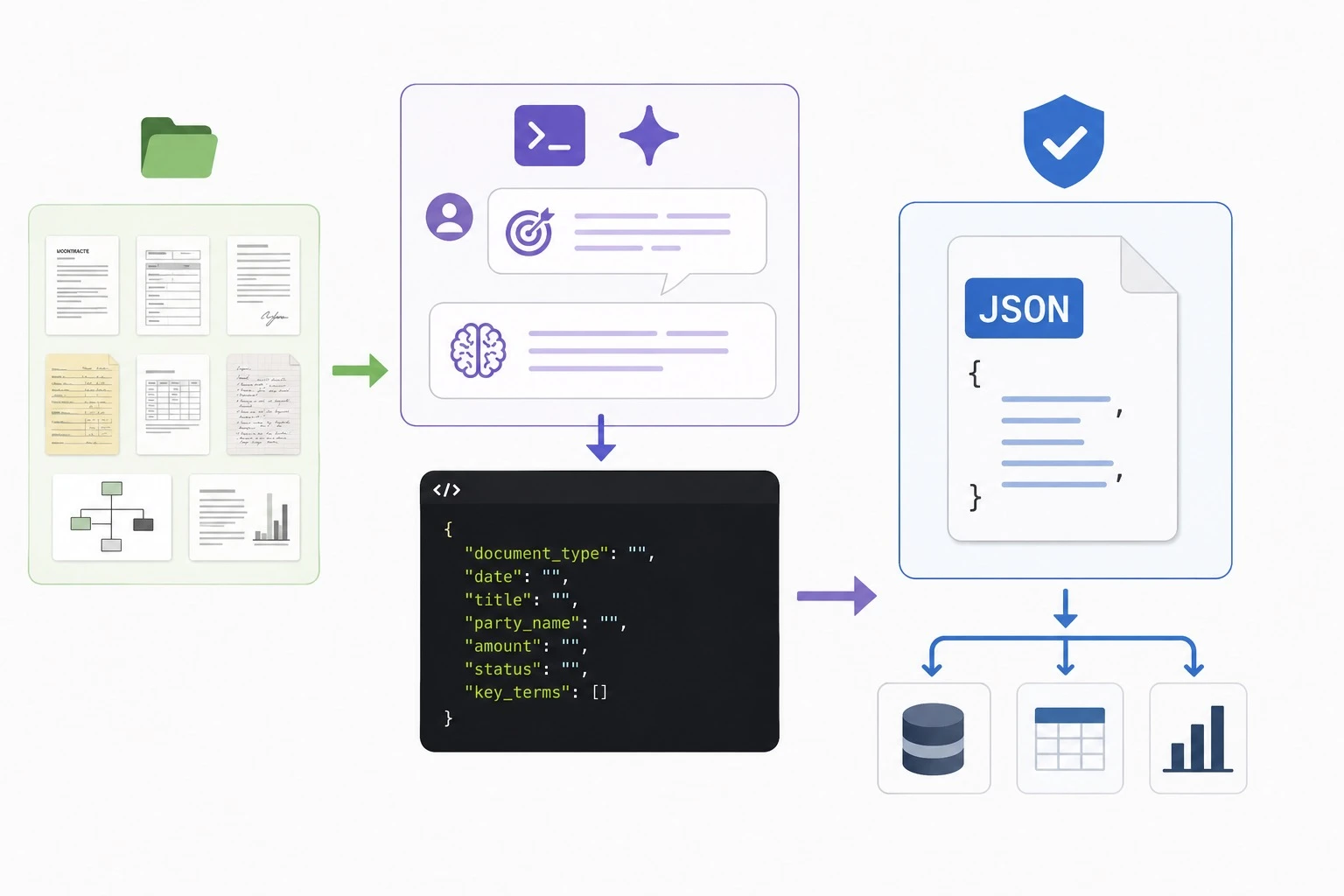
You do not need to write the prompt yourself from a blank page. The fastest way to start is to describe what you want, in plain language, to an AI like Claude or ChatGPT, and let it draft the prompt for you.
Be specific about the goal. Tell it exactly what you need from each document: the vendor name, the invoice number, the invoice date and due date, the currency, the subtotal, the tax, the total, and the line items if you code by line.
Give it one of your example invoices to work from, and it will hand you a first version in seconds.
There are two things to be firm about here.
Ask for the output as JSON
You do not want a paragraph of prose back. You want structured data your code can use.
If you have not worked with it before, JSON is just a simple, standard way to write down data as a set of labeled fields. Each thing you want to capture gets a label, called a key, paired with the value the model pulled from the document.
For a single vendor invoice, the output might look like this:
{
  "document_type": "invoice",
  "vendor_name": "Northside Plumbing Supply",
  "invoice_number": "INV-20931",
  "invoice_date": "2026-06-14",
  "due_date": "2026-07-14",
  "currency": "USD",
  "subtotal": 1240.00,
  "tax": 99.20,
  "total": 1339.20
}
That is all JSON is. A predictable list of key: value pairs. Because the shape is always the same, your code can reliably grab invoice_number or due_date every single time, instead of trying to fish it out of a sentence.
Do not just ask for JSON, enforce it in your own code
Asking nicely in the prompt is not the same as guaranteeing it. Models sometimes wander, wrap the JSON in commentary, or drop a field.
So check the output against the shape you expect, and reject or retry anything that does not match. Most providers also have a structured output or JSON mode that forces the format for you, so use it.
The goal is that by the time the data reaches the rest of your workflow, it is always the same shape, every time. That guarantee is what keeps everything after it simple.
Keep the prompt in its own markdown file
One small habit that pays off early: do not bury the prompt inside your code as a giant string. Put it in its own markdown file, something like extraction_prompt.md, and have your code read it in.
Markdown (a .md file) is just plain text with light formatting, which makes a prompt easy to read and easy to edit. A first version might look like this:
You are extracting data from a vendor document for bookkeeping.

Read the document and return ONLY a JSON object with these fields:

- document_type: one of invoice, receipt, credit_memo, other
- vendor_name: the business that issued the document
- invoice_number: the vendor's own reference number
- invoice_date: the date the document was issued, as YYYY-MM-DD
- due_date: the date payment is due, as YYYY-MM-DD
- currency: the three-letter currency code
- subtotal, tax, total: numbers, exactly as printed

If a field is not present in the document, return null for it. Do not guess.
Return nothing except the JSON object.
Keeping it in a file means you can read it, edit it, and track its changes over time without touching the rest of your code. That matters a lot in the next step, where most of the work is editing this file.
Treat this first prompt as a starting point, not a finished thing, which leads straight into the most important step.
Read it carefully and cut it down
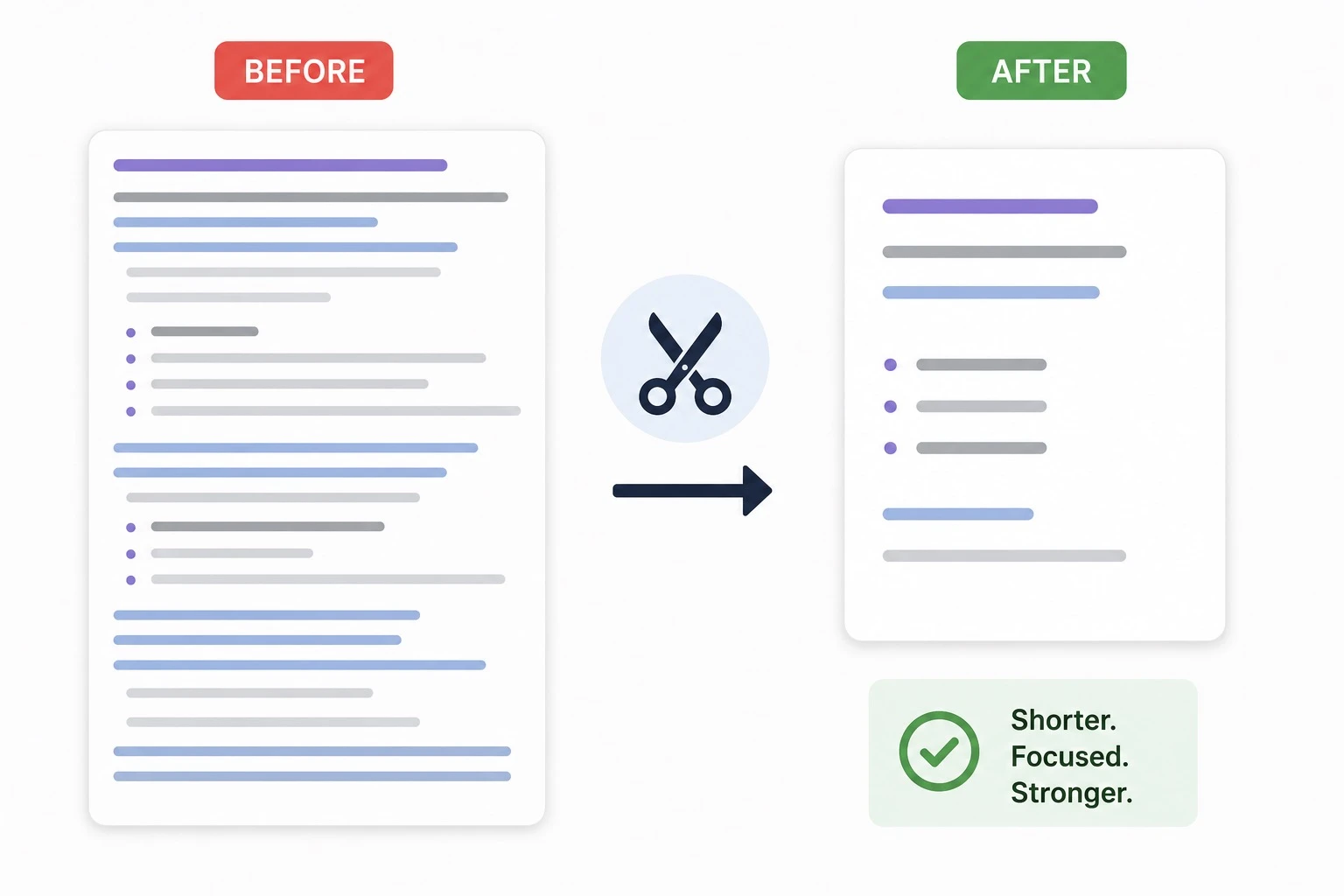
This is the step everyone underestimates, and it is the one that decides whether your workflow actually works or just almost works.
AI overengineers prompts. Ask a model to write you one and it gives you something long, detailed, and very thorough looking. Full of caveats and edge cases and instructions you never asked for.
It reads like an expert wrote it. And a lot of the time it is quietly wrong. It tells the model to calculate a due date from the terms when you wanted the printed date, to add up the lines itself when you wanted the printed total, or it stacks up rules about tax that contradict each other on real invoices.
So read every line of what it gave you, and assume some of it is wrong until you have checked. Then cut.
Make the prompt shorter. A short, sharp prompt is easier for the model to follow and easier for you to reason about. Long prompts hide contradictions, short ones do not have room to.
Take fields out of the output. Every field you ask for is one more thing that can come back wrong. If you do not post it to the books or use it in a check, drop it. Fewer fields means fewer ways to fail and better accuracy on the ones that matter.
Cut any instruction you cannot explain. If you do not know why a line is in the prompt, it probably should not be.
Keep the model reading, and do the arithmetic in code. Ask for numbers exactly as printed, and let your own code check that they add up. A model asked to correct a total will sometimes "fix" a correct one.
The instinct most people have when the model gets something wrong is to add more instructions. Usually the fix is the opposite.
You take things away until what is left is precise. Shorter almost always wins, and this one habit does more for accuracy than anything else in the whole process.
Run your test documents through it and check the results
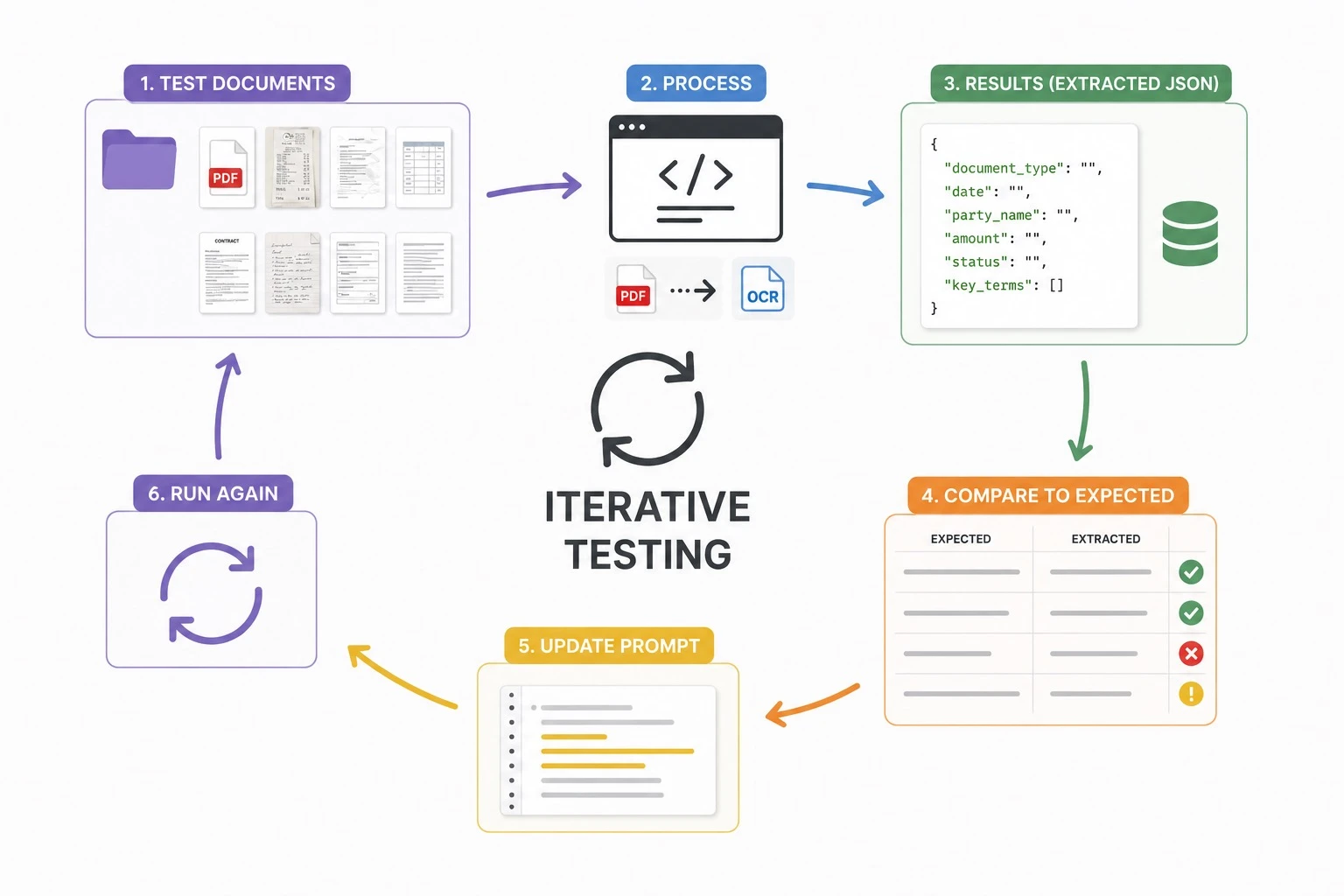
Now actually run it. Push your documents through and compare what comes out against the answer key you wrote down back in step one.
First you have to get the document into a form the model can read. For PDFs there are two ways to do it.
You can turn the PDF into an image and send that to a model that can see. This is the more reliable option for scanned invoices, phone photos of receipts, and anything with a complicated table, since the model sees the page the way a person would.
Or you can pull the text out with a PDF library and send the text. This is cheaper and faster and works well for clean, digital PDFs, like the invoices most accounting and billing software produces.
One thing to watch here is licensing. Not every PDF library is free to use in a commercial product.
The most popular one, PyMuPDF, is AGPL licensed, which can mean you need to pay for a commercial license depending on how you ship your software. Others like pypdf, pdfplumber, and pdfminer.six are permissively licensed and are generally fine for commercial use.
Whatever you reach for, check the license before you build on it. It is a bad surprise to find out late that something at the core of your workflow was never cleared for the way you are using it.
Once documents are flowing through, be honest about the results. Compare field by field, not document by document: a workflow that gets the vendor right on every invoice and the due date wrong on one in five has a specific problem you can fix. Run your build set first to clear out the obvious problems. Then run the set you held back, the documents the prompt never saw, and see if the quality holds. That second run is the one that tells you the truth.
And run your whole test set again every time you change the prompt. This is easy to forget. When you tweak the prompt to fix one vendor's invoice, you can quietly break another's, and the only way to know is to test them all again after each change.
Refine until it holds, then decide where it runs
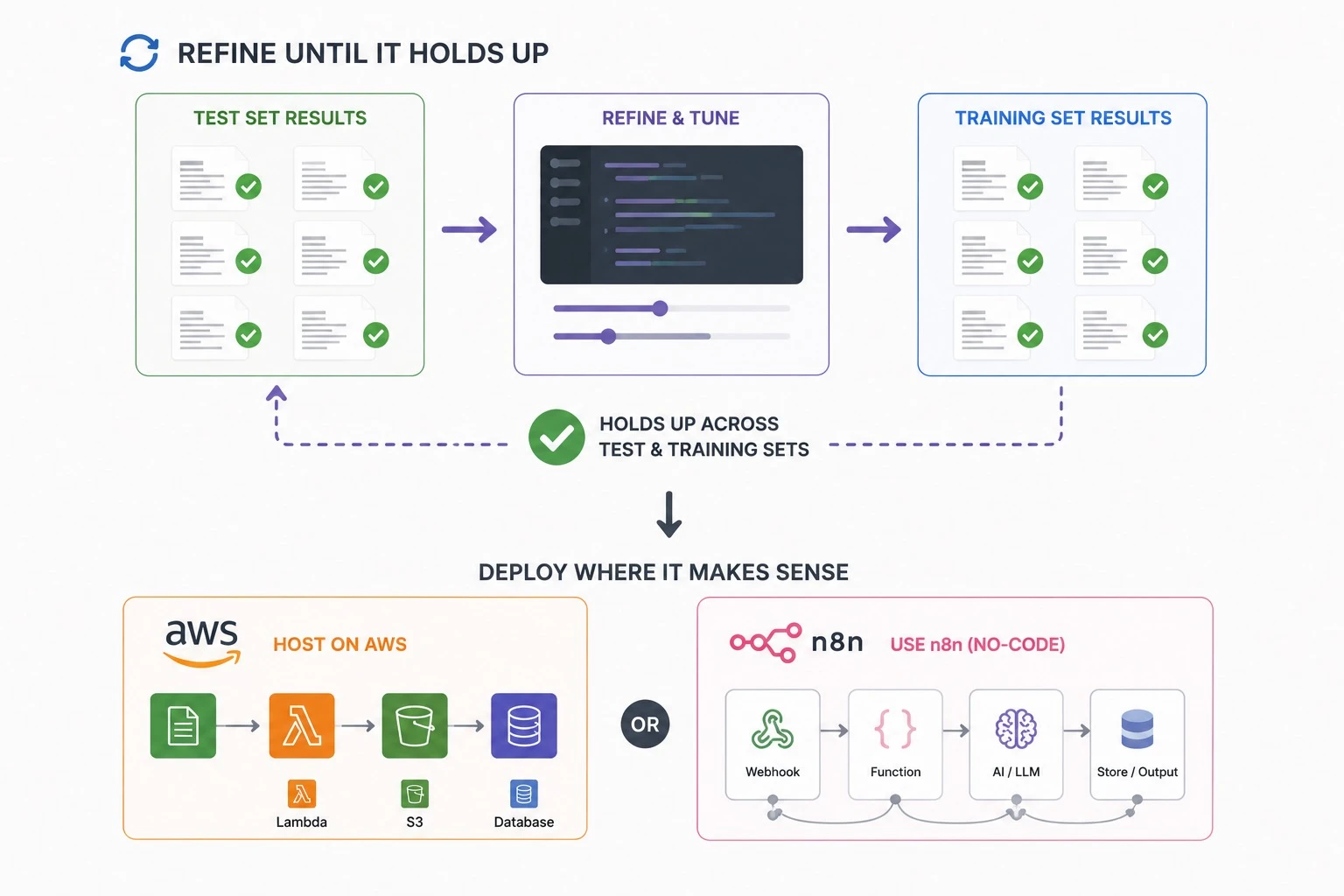
Good extraction comes from looping, not from nailing it on the first try.
Look at where the test set failed, adjust the prompt, usually by cutting and sharpening like in step three, then run the tests again. Each loop should close the gap between what comes out and what you wanted. Keep going until it holds up across your whole test set, including the documents you held back.
When the workflow itself is solid, decide where it should live.
If you want to move fast, or you want something your team can actually see and maintain, a no code tool like n8n is a great place to run it. You build it as visual blocks, drop your prompt into an AI step, and connect it to the inbox the documents come from and the accounting connection they go to.
If you need more control, more volume, or lower cost at scale, code running on something like AWS is the better home, and running it serverless means you only pay when a document actually comes through. For a firm with many clients, where documents arrive in bursts at month end, that matters.
A nice middle path is to have an AI coding tool like Claude Code draft the whole workflow, then run it inside n8n so you get the speed of letting AI build it and a result your team can still read.
Once you have the data, decide how it gets posted
Everything up to this point is about extraction: getting clean, structured data out of the document. In bookkeeping, the output is not a report, it is a record in QuickBooks Online or Xero. Turning one into the other means four decisions: which kind of record, which vendor, which account for each line, and which tax code.
The record has to look like one you would have entered.

Which record. An invoice not yet paid becomes a bill. A receipt for money already spent is attached to its transaction, or becomes an expense in QuickBooks Online or Spend Money in Xero. A credit memo becomes a vendor credit or a credit note. The document type from the sort stage drives this, which is one more reason to get sorting right. A bill in QuickBooks Online is created open in accounts payable; in Xero you can create it as a draft so it waits for approval.
Which vendor. Match the vendor on the document to a contact already in the books, rather than creating a new one every time a vendor writes its name slightly differently. "Northside Plumbing Supply Ltd." and "Northside Plumbing" are the same contact. Duplicate contacts split a vendor's history in two and make the duplicate-invoice check blind.
Which account. Each line needs an account from the client's own chart of accounts. Give the model the real list of accounts and let it choose from that list, then check in code that the account it picked actually exists. Do not let it invent one, and do not write rules of your own that override its choice; if it picks badly, give it better context, not a heuristic.
The best context is the client's own history. For each new bill, pull the last few bills from the same vendor and show the model how they were coded. That is retrieval augmented generation, or RAG: for each new document you fetch the most similar past examples and hand them over with it. The closer those examples are, the better the coding, because the model is matching how this client has actually handled this vendor.
Which tax code. The tax on the document has to land on a tax code the books already use, and the amounts should match to the cent. This is simple for a single sales tax and harder where several taxes apply, as with GST, HST, PST and QST in Canada. Our Canadian sales tax guide shows what that looks like in practice.
You do not have to make one prompt do all of this. A cleaner approach is to route each document to its own handler: one for bills, one for receipts, one for credit memos, each with its own prompt and its own examples. Within a type you can split further, for example by vendor, when a few vendors send documents that behave very differently. One handler per case means you can adjust one without touching, or risking, the rest.
Be honest about how far this goes. Some coding decisions take judgment the documents do not contain: a supplier who sells both materials and services, or a bill that should be split across jobs. When the model is unsure, the right move is to hold the document for a person with the reason stated, not to guess. A workflow that posts most bills correctly and holds the rest with a clear reason is still a huge win over entering all of them by hand.
How do matching and duplicate checks work?
Matching connects an incoming document to a record that already exists, and duplicate checking stops the same document becoming two records. A receipt is matched against transactions already in the books, because the money has already moved. A bill is checked against bills already processed, because paying one twice is the costliest mistake in accounts payable.
The two checks answer different questions, and a good workflow runs both.

Receipts. A receipt is proof for a payment that already happened, usually one already in the bank feed. Look for a transaction in QuickBooks Online or Xero that matches on merchant, amount and date. Where one matches, attach the receipt and create nothing. Where the match is close but not exact, hold it for a person to confirm.
When nothing matches, the receipt becomes a new record against the card or bank account the money left from: an expense in QuickBooks Online, a Spend Money transaction in Xero, with the receipt attached. If the paying account cannot be worked out, create nothing and hold it, rather than guess.
In DocStreamAI a matched receipt attaches on its own by default and changes no amount; turn Receipt approval on to confirm each match first. An unmatched receipt follows its own receipt expense setting, set separately from bills.
Bills. Before a bill posts, check whether this invoice number from this vendor has been seen before. That catches the reminder, the resend and the forwarded copy. In DocStreamAI the duplicate check runs whatever the submission setting is, for QuickBooks Online and Xero alike.
Already paid. A bill that arrives after you paid it by card is a different trap. The bill is real, but the money has already moved, so posting it as an open bill invites a second payment. Watch for vendors who email both an invoice and a receipt for the same purchase.
What gets held for review?
A document waits for a person when something about it does not add up, or when the workflow has not seen its sender or vendor before. DocStreamAI holds a document when it is a duplicate of one already processed, when an invoice has no due date, when the subtotal plus tax does not equal the total, when the company name on it is not yours, or when the category came back with low confidence.
Each reason catches a specific, common failure.

A duplicate is usually a reminder or a resend; confirm it and discard it.
No due date usually means a purchase order or a quote. Sometimes it is a real bill from a vendor who leaves terms off, and the person adds them.
Totals that do not add up point at a misread line, an oddly printed discount, or the vendor's own arithmetic.
A company name that is not yours catches documents sent to the wrong client, or personal purchases made with a business email address.
A low confidence category means the model could not tell where the expense belongs. A default category for that vendor usually ends it.
An unknown sender or a new vendor waits under the Hybrid setting, which submits on its own only when both the sending address and the vendor name are recognized. Manual holds everything, Automatic submits from any vendor, and starting on Manual is the recommended path.
Two setup choices shrink this queue fastest: the industry chosen at onboarding, which guides categorization, and per vendor settings that force review, trust any address at a vendor's domain, or pre-assign a default category. Both work the same way for QuickBooks Online and Xero.
How does one invoice get from the inbox into QuickBooks Online and Xero?
It arrives in a connected inbox, is sorted as an invoice, has its fields read, passes the arithmetic, duplicate and due date checks, is matched to an existing vendor with each line coded to the chart of accounts, and is created as a bill with the PDF attached. In QuickBooks Online the bill is open and unpaid; in Xero it is a draft bill waiting for approval.
Here is one invented bill making that trip.

Larkspur Builders, a small contractor, receives invoice HC-20417 from Harrow Creek Lumber in the office manager's connected inbox. Both companies are made up. Nobody downloads, forwards or renames the PDF.
Reading the fields. The vendor, the invoice number, the September 14 date, both lines ($1,840.00 of framing lumber and $120.00 of delivery), the tax of $128.80 and the total of $2,088.80 are read off the page. No due date is printed, so the terms, net 30, give a due date of October 14. A printed due date would have won.
Checks. The arithmetic holds: $1,960.00 plus $128.80 is $2,088.80. It is addressed to Larkspur Builders, it has a due date, and HC-20417 has not been seen before.
Vendor and lines. Harrow Creek Lumber already exists in the books, so the bill is matched to it, and each line is coded to an account from Larkspur's own chart of accounts.
Who looks at it. On Hybrid, a known vendor sending from its usual address goes through. On Manual, it waits on the review dashboard. The setting works the same way on both platforms.
The record in QuickBooks Online. A bill for Harrow Creek Lumber with bill number HC-20417, both dates, a line for each invoice line coded to an account, and the PDF attached. It sits open and unpaid in the Bills list.
The record in Xero. A bill for the Harrow Creek Lumber contact with HC-20417 as its reference, both dates, a line for each invoice line coded to an account, and the PDF attached. It sits as a draft, waiting for approval.
That last difference comes from the platforms themselves. Everything before it is identical. For the field-by-field version on real test documents, see the QuickBooks example and the Xero example.
What comes after extraction in a bookkeeping workflow
Getting the extraction accurate is the part this guide spends the most time on, because everything else sits on top of it. If the data is wrong, none of the rest matters. But running it on real books is a second project, and it is worth seeing the size of it before you start.
Production is most of the work.

Once extraction works, you still have to:
- Watch every inbox documents arrive in, and notice links and bundled attachments as well as plain PDFs.
- Check for duplicates before posting, against both the documents you have processed and the bills already in the books.
- Check the arithmetic, and hold documents whose totals do not add up.
- Hold documents with no due date, no vendor, or a type you did not expect, with the reason written down.
- Match receipts to the card and bank transactions they belong to before creating anything new.
- Connect to QuickBooks Online and Xero through their own authorization, and handle a connection that expires or is revoked.
- Respect each API's rate limits, and retry when a call is refused, instead of losing the document.
- Attach the original document to every record you create, so the books carry their own evidence.
- Keep each client's documents, settings and books apart if you work for more than one business.
- Add a queue and some concurrency control so a month-end burst does not knock the whole thing over.
- Add retries and a dead-letter path for the documents that fail partway through, and a way to replay them.
- Add logging, so you can trace what happened to any single document, and monitoring, so you hear about a failure the day it happens.
- Catch the model when it makes something up, and route those cases to a person.
- Keep an eye on the cost per document, and on what each model change does to it.
That is not even the full list. Each of these is its own sub-project, and how much work it is varies with how many clients, inboxes and accounting connections you are running. Bookkeeping adds a constraint most document projects do not have: a mistake does not just produce a bad file, it produces wrong books that someone has to find and reverse. That is why the checks and the holds deserve as much care as the reading. Our guides to invoice reconciliation and the month-end close show where errors that slip through surface later.
Putting it together
The whole workflow in order:

- Pick the documents to start with, usually vendor invoices, and decide what each should become in the books.
- Gather varied examples from many vendors, write the answer key, and split them into a build set and a held back test set.
- Let an AI write the first prompt, and ask for JSON you enforce in code.
- Read it carefully and cut it down, because shorter and narrower almost always wins.
- Run your documents through, handle PDFs on purpose, mind the library license, and test again after every change.
- Refine in loops until it holds, then pick where it runs.
- Post the right record, with the vendor matched, each line coded from the real chart of accounts and the document attached.
- Wrap it in the checks, holds and connections that production needs.
None of these steps is hard on its own.
The reason document automations fail is almost always that someone trusted a long prompt they never read, skipped the testing and got surprised by the first invoice that did not look like their samples, or posted straight to the books without the checks that catch a statement dressed as a bill.
Do them in order and you end up with something that does not just work on your examples, but keeps working on the documents you have not seen yet.
What it looks like as a folder
It helps to picture the whole thing on disk. You do not need anything fancy, just a place for your examples, your prompts, and the code that ties them together. Something like this:
document-workflow/
├── examples/
│   ├── build/            # documents you tune against, with answer keys
│   └── test/             # held-back set you only test on
│
├── prompts/
│   ├── sort.md           # invoice, receipt, credit memo or other
│   ├── extraction.md     # the extraction prompt (returns JSON)
│   └── coding/           # one coding prompt per document type
│       ├── bill.md
│       ├── receipt.md
│       └── credit_memo.md
│
├── src/
│   ├── extract.py        # PDF -> JSON, with the shape enforced
│   ├── check.py          # totals, duplicates, vendor, due date
│   ├── post.py           # create the record in QuickBooks Online or Xero
│   └── run.py            # tie it together (webhook, schedule, or manual)
│
└── tests/                # run the test set, compare to the answer key
The shape mirrors the steps. Your build and test sets stay split, your prompts live in their own files so they are easy to read and edit, each document type keeps its own coding prompt, and the code stays small. The past examples each coding prompt uses come from the client's own books at run time, so they do not need a folder of their own.
Should a bookkeeper build this or buy it?
Build it when your documents are unusual, you have someone who can maintain code, and the workflow is part of what you sell. Buy it when the job is the common one, vendor invoices and receipts arriving by email and headed for QuickBooks Online or Xero, because the extraction is the small part and the checks, connections and maintenance are the large one. Many firms do both: buy the common flow, build the odd one.
The deciding question is who maintains it.

Building your own has real advantages. You decide exactly what gets extracted and how it is coded, you can handle a document type nobody else does, and you learn a lot about your own clients' paperwork along the way. The five steps above are enough to get an extraction you trust for one document type, and an afternoon with n8n is enough to see it run.
The cost shows up later. Vendors change their layouts. Models get replaced and the replacement reads a field differently. QuickBooks Online and Xero change their APIs. A connection expires on a Friday and nobody notices until the books are a week behind. A workflow you build is a workflow you own, and someone has to be on call for it.
So the honest answer depends on the document. If it is the everyday flow of bills and receipts that every bookkeeper handles, a finished tool is usually the better use of your time, and the comparison of automated bookkeeping software and the list of invoice capture software set out the options. If it is something specific to your practice, a document only your clients send or a report only your firm produces, building is often the only way to get it, and this guide is the place to start.
That everyday flow is the one DocStreamAI is built for. It watches connected Gmail and Outlook inboxes and a forwarding address, sorts each document into an invoice, a receipt, a credit memo or other, and creates the bill, expense or credit in QuickBooks Online or Xero with the document attached. Documents with no due date, or that look like a duplicate, wait for a person, and you choose how much else waits for review. It does not pay bills or move money. The walk-throughs for QuickBooks Online and Xero show each path.
How do you automate document processing?
Automate one document flow at a time, end to end, before adding a second. Pick a high volume flow, usually vendor bills and receipts. Map where those documents arrive, connect QuickBooks Online or Xero, decide what a person must see, run it on last month's real documents, work the review queue for two weeks, and then measure two numbers together. The steps are the same whether you build the workflow or buy it.
Judge it on the second month, not the first week.

- Pick one high volume flow. Usually vendor bills and receipts. Write down how many arrive a month and how long one takes today.
- Map where those documents arrive. Shared and personal inboxes, a forwarding address, paper, a supplier portal.
- Connect the destination. Link the QuickBooks Online company or Xero organisation, so vendors, accounts and transactions are visible.
- Decide what a person must see. Start strict and loosen it once you trust the results.
- Run it on your own documents. Last month's real paperwork, blurry phone photos included.
- Work the review queue for two weeks. Fix the causes you see more than once: a missing default category, an unconnected inbox, a sender that should be trusted.
- Measure two numbers together. The share of documents finished without a person, and the share of finished records later found to be wrong.
Steps two and four are where most rollouts go wrong. If bills arrive as email attachments and the process expects someone to download and upload them, you have moved the manual step without removing it. And if nothing waits for a person, the errors surface at month end instead. Step five is the held-back test set from the build steps, seen from the buyer's side: demo invoices are clean and one page long, and yours are not.
The two numbers in step seven only mean something together. A workflow that holds nothing shows a perfect first number and pushes its errors into month end. A workflow that holds everything shows no errors and saves no time. Write down a baseline in week one, because memory is not evidence: documents a month, minutes per document, how many get recategorized later, and how long the close takes.
Then watch the review queue rather than a dashboard total, because what lands there usually points at something fixable. If you run a firm, roll out one client at a time. If you want to put numbers on the time it could save first, estimate your own time saved.
How many example documents do I need?
There is no magic number, and variety matters more than volume. A few dozen genuinely different examples, across many vendors, layouts and scan qualities, will teach you more than hundreds of invoices from the same three suppliers. Whatever you gather, hold a quarter to a third back as a test set you never tune against, so you can see whether the workflow generalizes.
Add more examples where the test set fails, not everywhere.

A good starting set for a bookkeeping workflow covers at least these: invoices from vendors you have never processed before, invoices with tax shown by rate and with tax included in the lines, multi-page invoices, a few phone photos of receipts, a credit memo, and the look-alikes from the first section (a statement, a reminder, a quote). Write the answer key for each before you test, not after, or you will grade the workflow against what it produced.
Should I turn PDFs into images or pull the text out?
Both work, and the right choice depends on the document. Sending the page as an image to a model that can see is more reliable for scanned invoices, phone photos of receipts, and pages with tables or odd layouts. Pulling the text out with a PDF library is cheaper and faster, and a good fit for the clean digital PDFs that most billing software produces.
A common approach is text first, with images as the fallback.

The fallback needs a rule your code can apply. If the text layer is empty, or has far fewer characters than a page of that size should, treat the PDF as a scan and send the image. Scanned invoices saved as PDFs are common, so do not assume a PDF has usable text just because it is a PDF.
If you would rather buy this than build it, the section on how to automate document processing covers the rollout, and the guide to invoice automation software compares the tools that do this job for QuickBooks Online and Xero.
If you would rather not build this yourself for invoices and receipts, that is exactly what we do. DocStreamAI captures invoices and receipts straight from your email and gets the data into QuickBooks and Xero, with the testing, edge case handling, and accuracy checks already done. Check us out here.