
See exactly where your data goes in QuickBooks
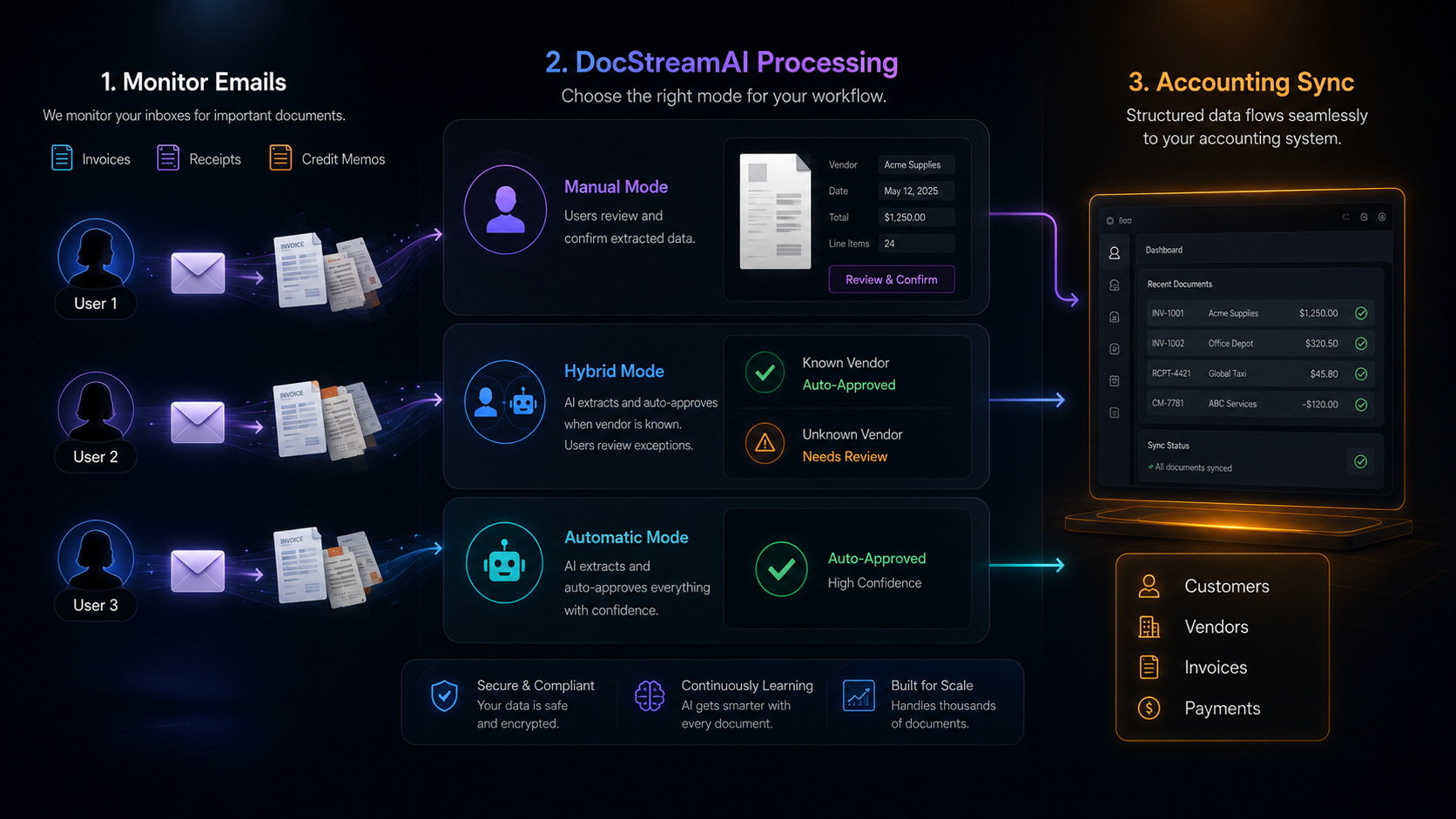
DocStreamAI monitors your team's inboxes for incoming invoices and receipts. Each document is then auto-submitted to QuickBooks or routed through manual review on your dashboard, depending on the review settings you choose.
Invoices
Invoices land in QuickBooks as bills, with vendor, line items, taxes, and totals already filled in.
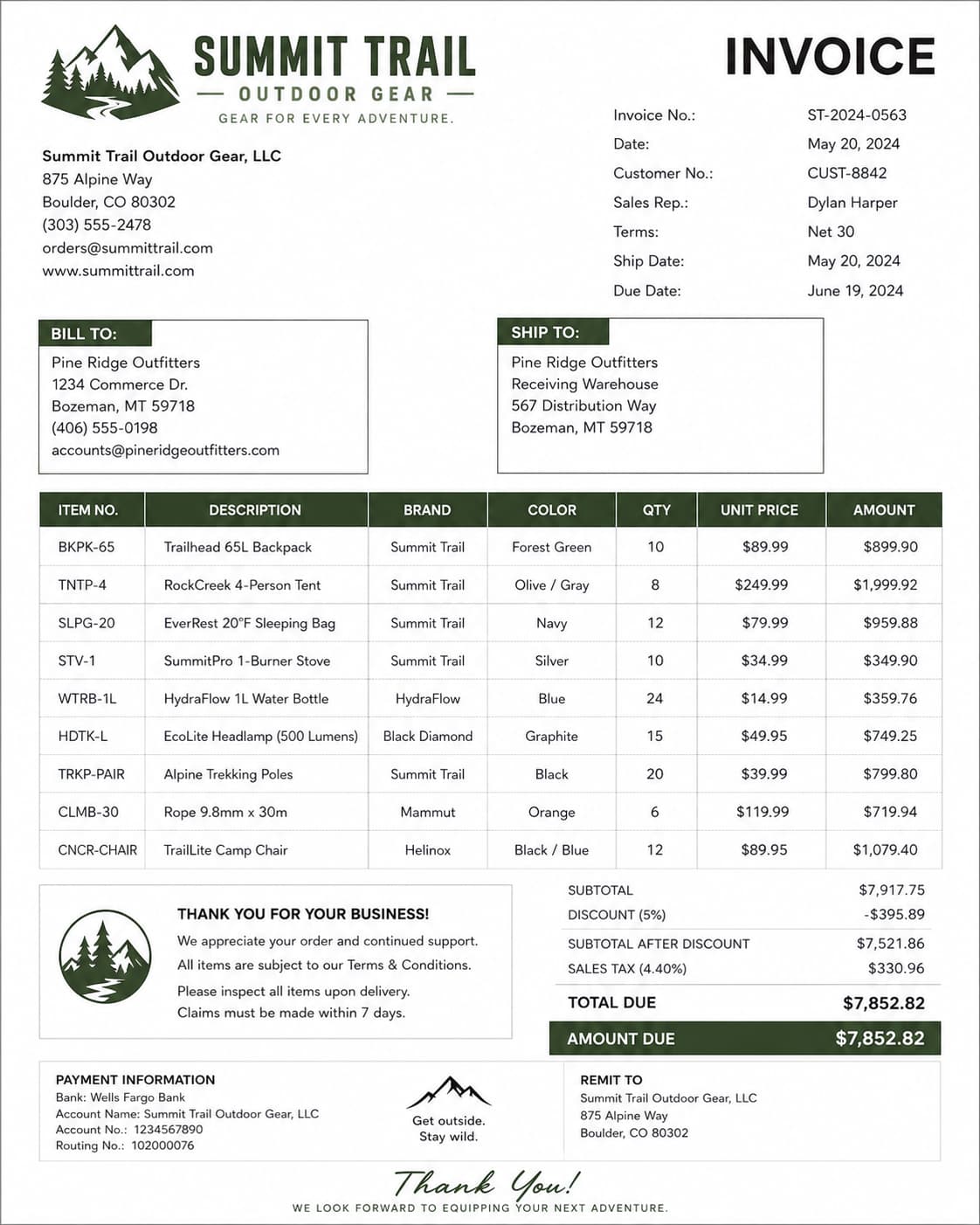
Outdoor-gear invoice from the inbox
When Summit Trail Outdoor Gear emails an invoice, DocStreamAI parses every field on the document including the vendor, bill number, line items, discounts, and totals, then queues it on your dashboard for review.
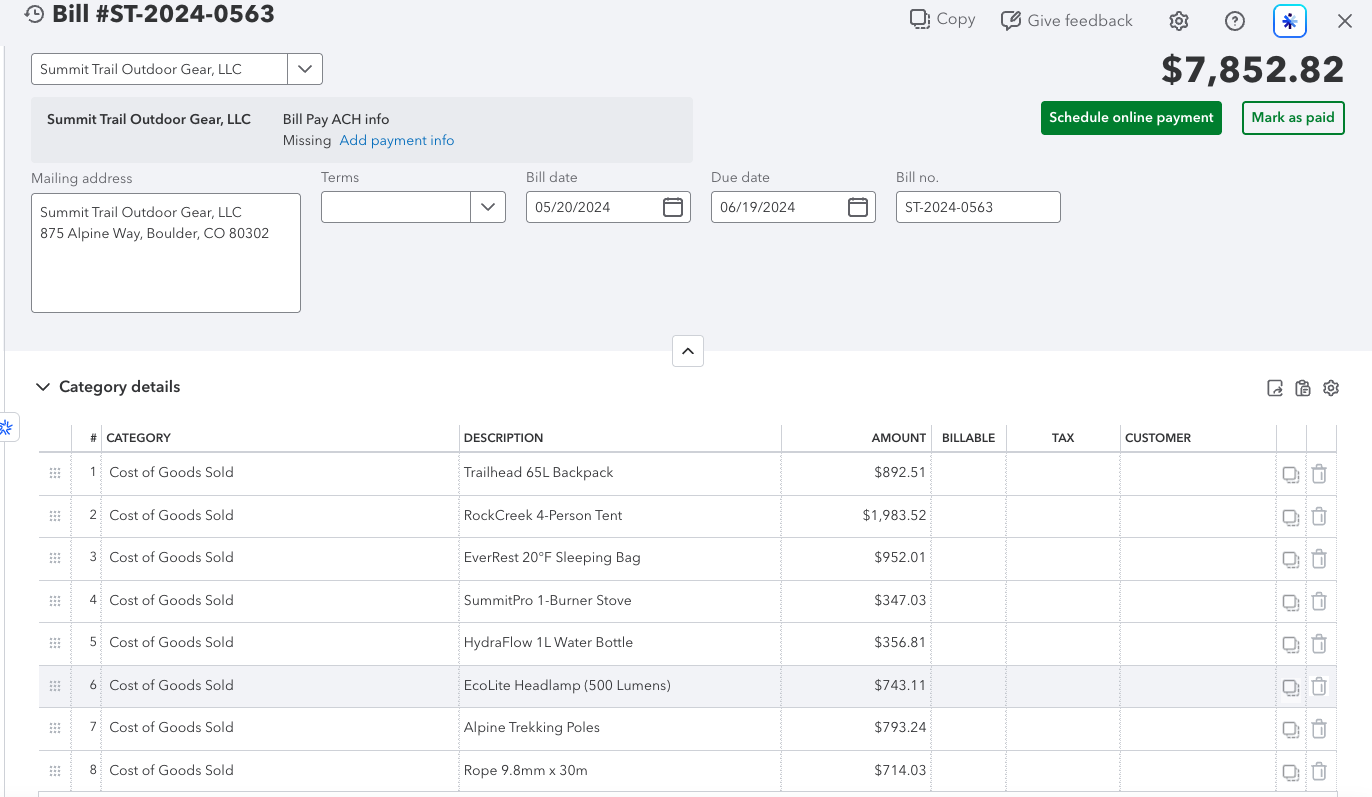
Pushed straight into QuickBooks
On approval, the bill lands in QuickBooks with the vendor matched and every line, discount, and total in place, ready to schedule for payment without a single keystroke.
Receipts
Receipts get matched to the right QuickBooks transaction and the original file is attached automatically.
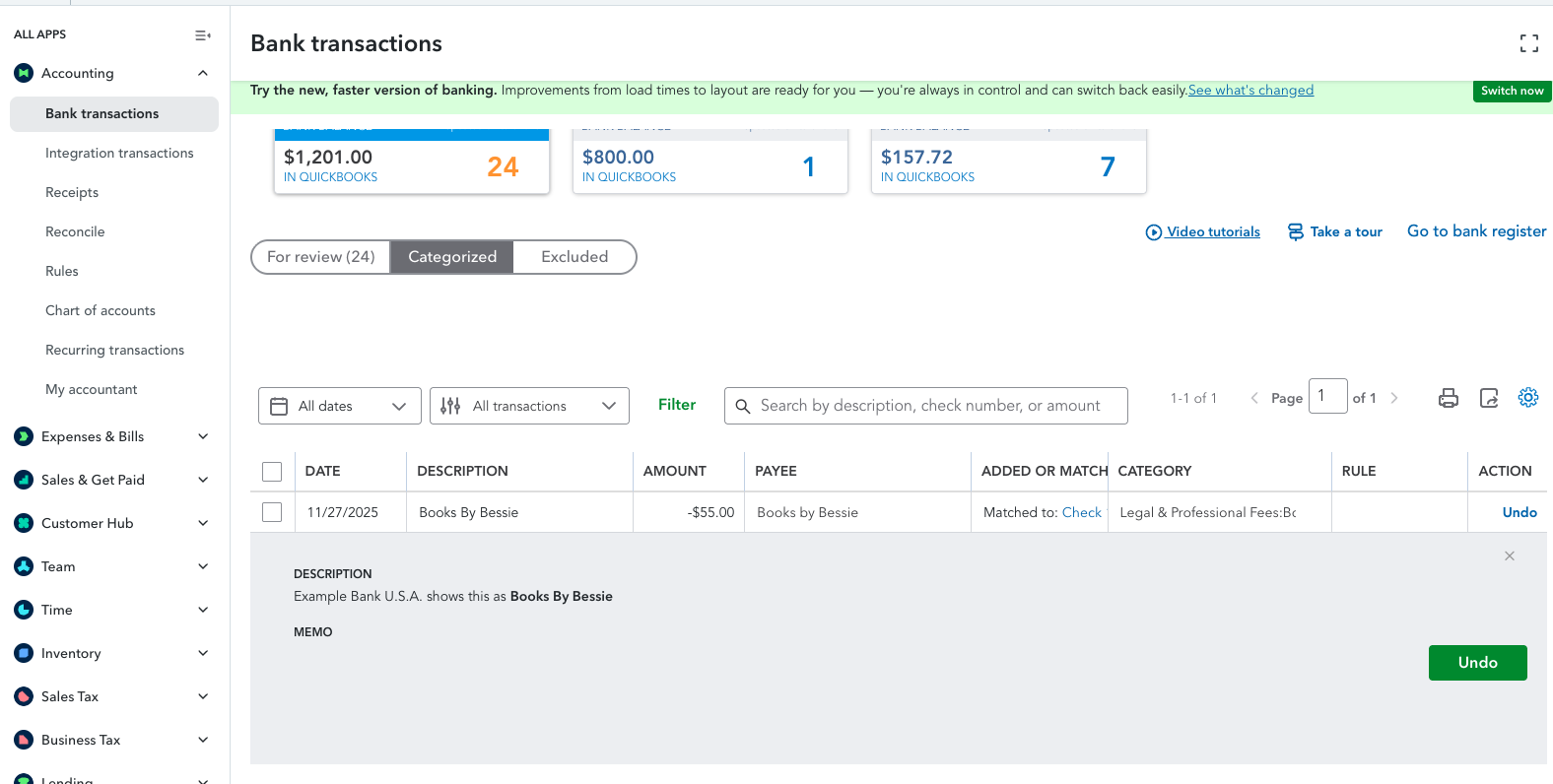
Matched in your bank feed
When a receipt arrives in your inbox, DocStreamAI extracts the vendor, date, and total, then matches it against your QuickBooks bank transactions so the right line gets categorized automatically. No copy-pasting, no spreadsheet middle step.
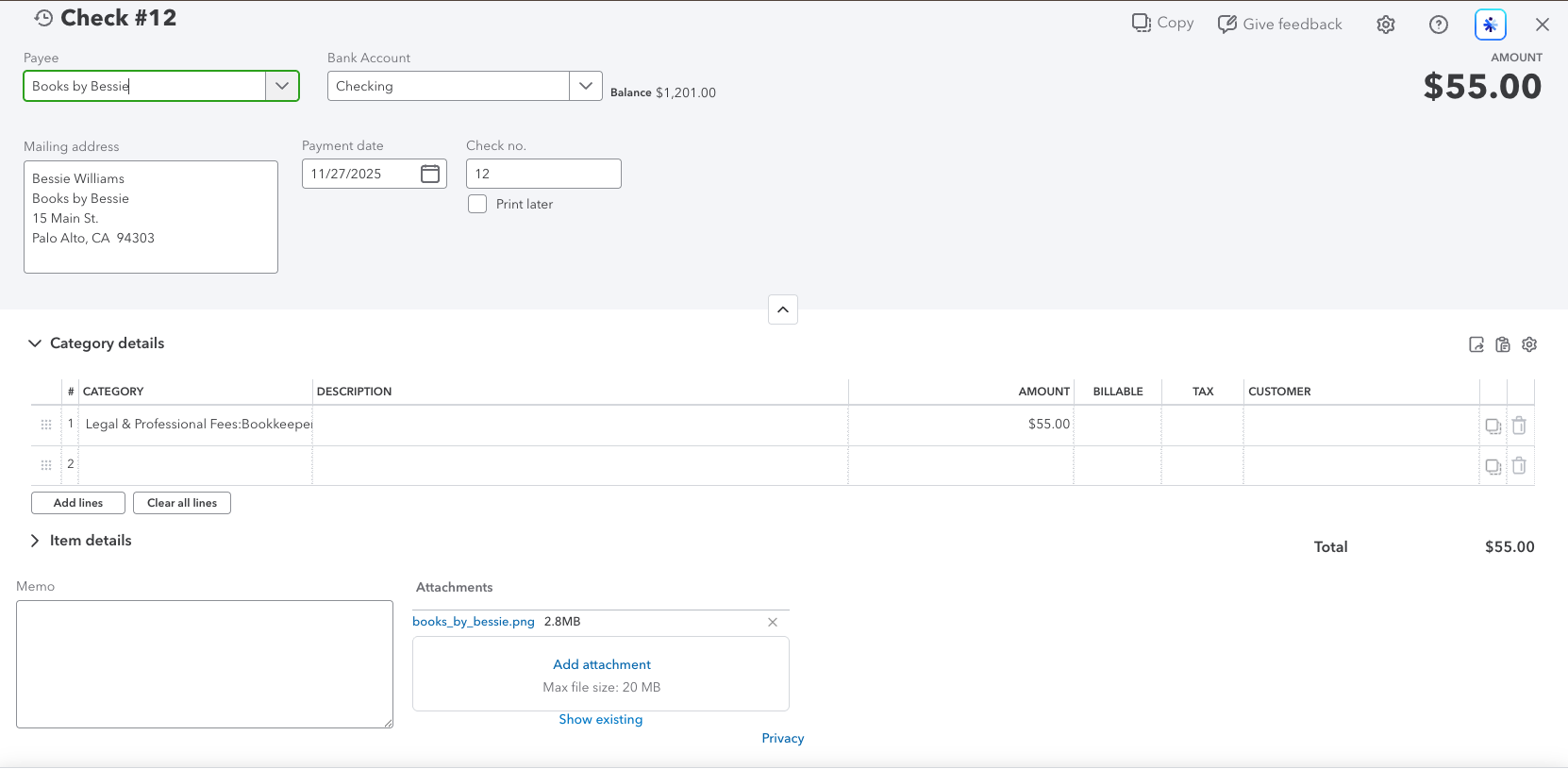
Original attached to the transaction
Open the matched transaction inside QuickBooks and the receipt is right there as an attachment.
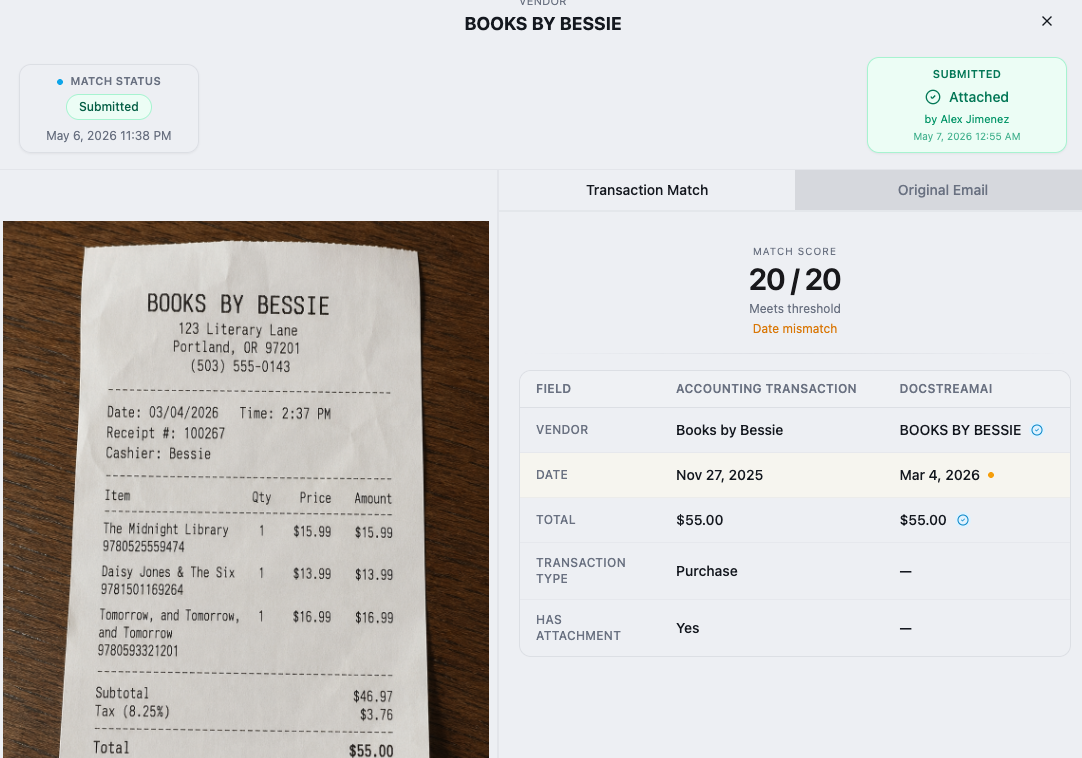
Manual approval when the date doesn't match
On this Books by Bessie receipt, the receipt date didn't line up with the bank transaction date, so DocStreamAI did not auto-attach it. The match was approved manually from the dashboard and then pushed to QuickBooks. For any auto-attachment, the date must match. Anything outside that tolerance is held for manual review, so nothing lands in QuickBooks without a human signing off.